EnduranceTestGUI User Manual
An endurance-testing tool that keeps sending random clicks and other actions to a GUI application, to check whether problems (crashes, freezes, memory leaks, etc.) show up after running for a long time.
1What this tool does
EnduranceTestGUI is an endurance-testing tool that keeps sending random clicks, drags, key input, scrolling, shortcuts, and window operations to a target GUI application, within "operation regions" you define beforehand. It automates the kind of check that's tedious to do by hand: "does anything break if a button is pressed hundreds or thousands of times?"
A particular focus is making it possible to trace back what caused a problem after it happens. When the target app crashes, the tool automatically saves:
- A dialog and log entry naming which step was running when it detected the crash
- A screenshot of the screen at that moment, plus a recording of the last few seconds leading up to it
- A full test-settings snapshot, including the RNG seed used, so the run can be reproduced
- The location of the OS's own crash dump / diagnostic log, when available
See Crash detection & re-testing for details.
2Prerequisites & required permissions
macOS
Grant EnduranceTestGUI access under System Settings → Privacy & Security → Accessibility. If it isn't granted, a dialog prompting for permission appears when you try to start a run.
Also grant EnduranceTestGUI access under System Settings → Privacy & Security → Screen Recording. Without it, the screen capture used as the background of the operation-region selection screen (the semi-transparent overlay) can't be taken, so the whole screen appears painted solid black, making other apps look like they've vanished (nothing about the other apps has actually changed). The ① panel also shows this permission's status, with a button to open the relevant Settings pane directly if it isn't granted.
EnduranceTestGUI.app directly in Finder is the reliable way to launch it.
Linux
No special permission is needed for sending input itself (it works as long as it can reach the X server). Only the right-click context-menu item-selection feature requires the target app's toolkit to support AT-SPI accessibility. Wayland is not supported (X11, or an X11 app running under XWayland, only).
3Screen layout
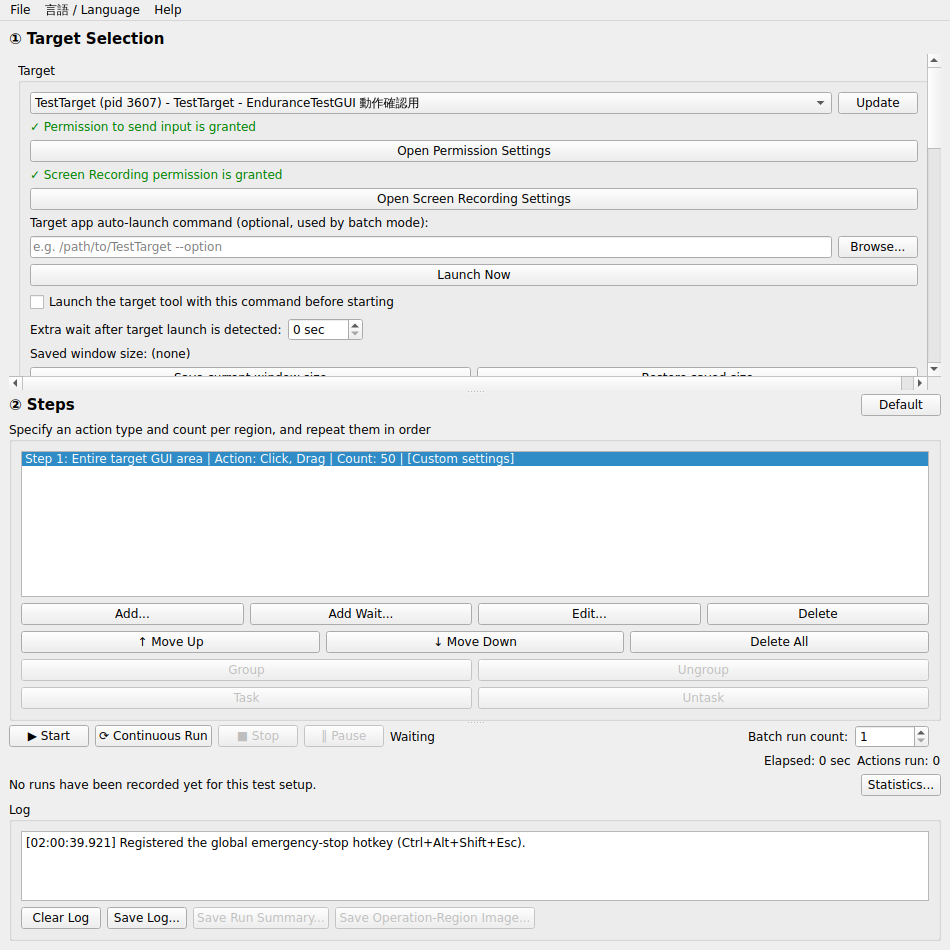
The window is divided into three vertical sections.
- ① Target Selection (top): choosing the app under test, registering operation regions, and timing/limits settings
- ② Steps (middle): the order of the actions to run. Each step's region, action types, count, and detailed parameters are all configured together in a dialog opened by double-clicking (or "Edit...") its row in the list
- Run controls / Log (bottom): start/stop buttons, run status, and the log
4① Selecting the target app
Choose the window you want to test from the "Target" dropdown. If it doesn't appear in the list, click "Update" to re-scan. Once selected, whether EnduranceTestGUI has permission to operate that app is shown in green (granted) or red (not granted); if not granted, "Open Permission Settings" opens the relevant OS settings screen. Below that, macOS's Screen Recording permission status is shown the same way (always "granted" on Linux). Without it, the operation-region selection screen's background appears solid black, making other apps look invisible, so use "Open Screen Recording Settings" if it shows red.
Setting a path in "Target app auto-launch command (optional)" lets you try launching it manually at any time with "Launch now", and is also used by the continuous-run features described in "⑧ Starting and stopping the test". Checking "Launch the target tool with this command before starting" makes "▶ Start" launch the target app with this command first, wait for it to appear, and only then begin the startup setup and step sequence (the auto-launch command must be set when this is checked). Setting "Extra wait after target launch is detected" above 0 seconds waits that many extra seconds, after the target tool's window is detected, before actually starting the test. Use this for a tool that isn't ready to receive input right at launch, where starting immediately would otherwise fail the safety check (applies to continuous run, the automatic-relaunch wait, and the option above alike).
"Save current window size" records the size of the currently selected target window (just one at a time; it's also saved in the preset JSON, so it survives restarting the app). "Restore saved size" changes the currently selected target window to that saved size. If the requested size is smaller than the target app's own layout minimum, the actual size it ends up with may be rounded up. Likewise, "Save current window position" / "Restore saved position" save and restore the target window's on-screen position, one value at a time. Checking "Apply the saved window position/size on each continuous-run relaunch" automatically applies whichever of the saved size/position are set every time the target app is (re)launched and detected, before the run starts (applies alike to 連続実行's kill-then-relaunch cycle, the auto/manual relaunch wait for "continuous run count", and the "launch before starting" option).
Clicking "Show All Operation Regions" highlights every currently registered operation region on screen at once, each with its own name label (no need to check them one at a time). Clicking it again (the button then reads "Hide") -- or clicking it with no operation regions registered -- shows a guidance message instead. This highlight is automatically hidden whenever you "Add...", "Edit...", or delete an entry in the list, and also automatically hides itself after it's been shown for about 12 seconds (a safety net for window managers where the main window can become hard to interact with while an always-on-top highlight is showing).
Instead of drawing a rectangle, you can also register an operation region by choosing "Target a widget on screen". If the target app is built with a toolkit such as Qt and exposes an accessibility API (macOS Accessibility API / Linux AT-SPI), you can specify a button, menu item, or other widget by name, and it keeps being found even if the target app's layout shifts somewhat (see the box below for details).
Choosing "Target a widget on screen" and clicking "Pick object..." switches the screen into picking mode. As you hover over buttons, menu items, and other widgets in the target app, a green box and the widget's role and name appear right there, so click while the widget you want is highlighted. If more than one widget on screen shares the same role and name, which "occurrence" you picked is determined automatically from the point you actually clicked, shown as e.g. "Targeting: push button "Save" (2nd match)".
A region registered this way can be referenced from a step exactly like a rectangle-based one, and existing actions -- click, drag, key input, scroll -- all work the same way. Since it follows the widget itself rather than fixed coordinates, it keeps pointing at the same widget even if the window's size or layout shifts somewhat. Checking "For click actions, run this widget's default action directly instead of using coordinates" makes a click invoke the widget's own default action (press for a button, toggle for a checkbox, etc.) through the accessibility API directly, instead of clicking a screen coordinate. "Re-resolve interval" controls how often the widget's position is looked up again while the same region keeps being used (the default, "only when entering a new step", looks it up once and reuses the result afterward, so even fast repeated actions see essentially no performance cost).
If the target app itself doesn't support the accessibility API, or you simply don't want to use it, check "Disable accessibility-API-based actions (context menu selection, dialog button press, named objects) for speed" in the ⑦ Timing & Limits panel. Enabling it stops any accessibility API calls altogether -- not just for steps that reference a named object, but for context menu selection and dialog button press as well.
Besides drawing a rectangle or targeting an on-screen widget, there's a third way to register an operation region: "Specify as Point Sequence (Sweep)". This is the same mechanism as the step-level "Point Sequence (Sweep)" described below (see "⑤ ② Building the steps") -- points evenly spaced along a path, visited in order, wrapping back to the first point once the path's end is reached -- but registered by name as an operation region itself rather than per step. Once registered, the same sweep point sequence can be referenced by name from multiple steps, without having to re-specify it for each one. Register it by clicking "Add Point..." once, then left-clicking points on screen one after another to build up the path in order -- a start, any number of midpoints, then an end -- and right-clicking to finish adding points (Esc cancels the whole in-progress addition; "Remove Selection" deletes any entry from the list afterward). At least 2 points (a start and an end) are required, and any number of midpoints may sit between them. Points evenly spaced "Interval (px)" apart are generated along the path connecting the start, midpoints, and end in order, and visited in that sequence; "Random Offset (px)" works the same as for any other point sequence (sweep). When a step references a sweep-type region, that region's own point sequence is always used, regardless of that step's own "How to Pick the Operation Position" setting.
5Startup setup (running login etc. automatically, once)
Some target apps require a fixed sequence of operations right after launch -- logging in, an initial-setup dialog -- before endurance testing by random actions can begin. Registering a sequence of actions in ①'s "Startup Setup" list runs them once, in order, right after the target app is confirmed running and before ②'s random actions begin.
1Clicking "Add..." opens a dialog for configuring one action. Choose a "Type": Click, Double-click, Right-click, Drag, Text Input, Key Input, Wait, Wheel Scroll, or Select Menu Item. "Wheel Scroll" takes a position, direction (up/down/left/right), and amount. "Select Menu Item" takes the right-click position and always selects the same one item from the menu it opens, specified either by item name or by position from the top (if the target app's menu contents vary from run to run and the specified item isn't found, the whole setup sequence isn't failed — the menu is just closed instead). The existing "Right-click" type always just dismisses whatever menu it opens, without selecting anything.
2For click-family actions and Drag, clicking "Select Position..." covers the whole screen in a translucent overlay -- just click the spot on the target app you want (no need to type coordinates by hand). The position is stored relative to the target window's top-left corner, so it stays correct even if the window has moved by the next run. Once picked, a small marker stays visible on screen at that position for as long as this dialog stays open (for Drag, both the start and end markers are shown, connected by a line), so you can confirm at a glance that the right spot was picked.
3The optional "Description" field (e.g. "Username field") makes entries easier to tell apart in ①'s list.
4Clicking "OK" adds it to the list. Use "↑ Move Up"/"↓ Move Down" to reorder, "Edit..." to change an entry, or "Delete" to remove one. "Clear All" empties the whole list immediately, with no confirmation prompt.
Checking "Only run on the first run of consecutive auto-execution (① batch)" makes the startup setup skip every automatic restart after the first one when you set ①'s "Batch run count" to 2 or more. Use this for something that only needs to happen once, like a license-agreement dialog that only appears the first time the app launches.
"● Record..." lets you build a whole startup setup sequence by actually performing it yourself, instead of adding entries one at a time. Clicking it shows a recording indicator panel in the top-right corner; while it's up, any mouse clicks, drags, or keyboard input you perform are appended to this list as you go, until you press Escape. This isn't limited to the target app's own window -- operating a dialog the target app opens (e.g. a confirmation dialog that appears after choosing a right-click menu item) is recorded the same way. Consecutive plain characters you type are recorded together as a single "Text Input" entry; Tab, Enter, arrow keys, etc. are each recorded as their own "Key Input" entry (a recorded click is always saved as a plain "Click" -- if you meant a double-click, change its type afterward via "Edit..."). Consecutive wheel notches are likewise coalesced into a single "Scroll" entry. If a left click right after a right click can be identified as picking an item from the menu that right-click opened, the two are recorded together as a single "Menu select" entry; when it can't be identified, they're recorded separately as an ordinary "Right Click" and "Click" instead. The real time that elapsed between recorded actions (except before the first one) is also automatically inserted into the list as a "Wait" entry, so replaying the sequence (e.g. via "▶ Test Startup Setup") reproduces roughly the same pacing you recorded it at (an inserted wait is an ordinary setup action too, so you can adjust its duration or delete it via "Edit..." like any other entry). Recording ends when you press Escape, or click "■ Stop Recording" on the indicator panel.
"▶ Test Startup Setup" runs just this list's setup against the target window selected in ①, so you can check it actually works. It doesn't run ②'s step configuration at all, so ② doesn't need to be set up yet. The run stops automatically once it finishes, and the status area shows "Startup setup verification completed". Clicking it with no setup actions configured shows an error dialog instead.
6② Creating steps (including action parameters)
A test is made up of one or more "steps" that run in order, repeating.
1Clicking "Add..." opens this step's settings dialog. First choose which region it will operate on: either "Entire target GUI area (auto-follows)" or one of the named operation regions registered in ①.
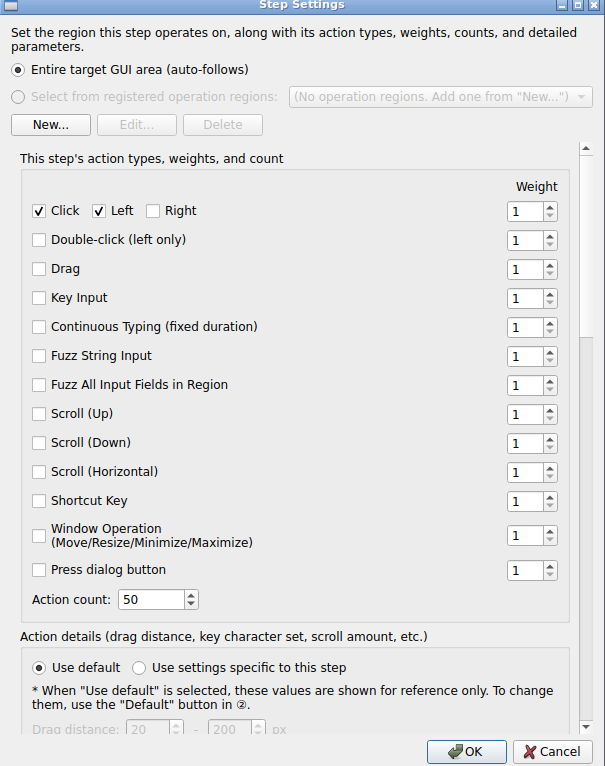
2Clicking "OK" adds the step to the list and selects it automatically. To change its settings later, either double-click its row in the list, or select it and click "Edit..." — either way reopens the same dialog. The shared initial values (defaults) used for newly created steps can be edited at any time via the "Default" button in ②'s header row, even with no step selected.
Steps can be reordered within the list with "Move Up"/"Move Down", or multi-selected and combined into a single group with "Group" (members within a group are picked at random according to their weight). "Add Task..." builds a "task" from scratch instead: a task always runs every one of its member steps exactly once, in the order shown, and the whole run counts as a single "run count" — use this when you have a sequence of actions that must not be randomly reordered. Unlike "Group", it doesn't act on the current selection at all; it opens the same dialog used to edit an existing task, empty, and you build up its members one at a time with that dialog's own "Add...". For either a group or a task, selecting it and pressing "Ungroup"/"Untask" splits it back into its original individual steps. "Add Wait..." lets you insert a "wait step" that does nothing for a specified number of milliseconds.
The step settings dialog's "How to Pick the Operation Position" lets you choose "Point Sequence (Sweep)" instead of the default "Random" (a fresh random point within the operating region every time). Pick two points with "Select Start Position..."/"Select End Position...", and the step cycles through points evenly spaced "Interval (px)" apart between them, one per action (wrapping back to the start once it reaches the end). This is for when you want to click your way up (or across) an area at a steady interval without having to hand-build a separate named region for every row — one step handles it. Setting "Random Offset (px)" above 0 adds a random up/down/left/right offset within that range each time a point is actually operated on, so it isn't the exact same pixel every single pass.
The region-selection dialog shown when adding or editing a task's actions also offers "Target a newly appeared window (dialog, etc.) (auto-detected)". An action using this option operates on whichever window newly appeared besides the target app's main window — e.g. a confirmation dialog opened by a preceding action's context-menu selection — instead of any of the usual named/whole-window regions. If no such window has appeared yet when it's this action's turn to run, it automatically waits until one does. For this "target a newly appeared window" task member, the detailed action settings also offer a "Press dialog button" action type. Register a list of candidate button names (e.g. "OK", "Yes") ahead of time, and at run time it searches that dialog for whichever of those names is actually present and clicks it (the same mechanism as context-menu item selection). If none of the candidates can be found, that attempt is skipped and retried on the next opportunity.
Fuzz String Input & Fuzz All Input Fields in Region
The "Fuzz String Input" action type types a randomly picked boundary-value/malformed string (a "fuzz string") into whichever single field currently has keyboard focus. "Fuzz All Input Fields in Region" broadens this: it finds every editable widget (text fields, multi-line text areas, a spin box's embedded entry, etc.) inside the chosen operating region via the accessibility API, and in one action, types a random fuzz string into each of them — regardless of which one, if any, currently has keyboard focus. Both reveal their own detailed options once you switch the detailed action settings to "Use settings specific to this step".

"Fuzz string delivery method" offers three choices: "Key Input" types the string one character at a time via keyboard events, "Paste" delivers it in one shot via the clipboard, and "Random" picks between the two each time the action runs. Key Input can fail to send some characters correctly, because the key-input backend used here can only reliably send Latin-1-range characters, not the full Unicode range; Paste delivers any string correctly regardless of its contents, but it temporarily overwrites the clipboard for the duration of the action and automatically restores its previous contents afterward (unless some other app has grabbed the clipboard in the meantime). The candidates list ships with a large default set of control characters, emoji, very long strings, and canned SQL-injection/path-traversal payloads; choosing "Use only selected strings" instead of "Use all fuzz strings" restricts the action to only the strings checked in that list. The list's contents themselves can be freely added to, edited, removed, or reset to the shipped defaults via "Edit Fuzz String List..." under the "View" menu.
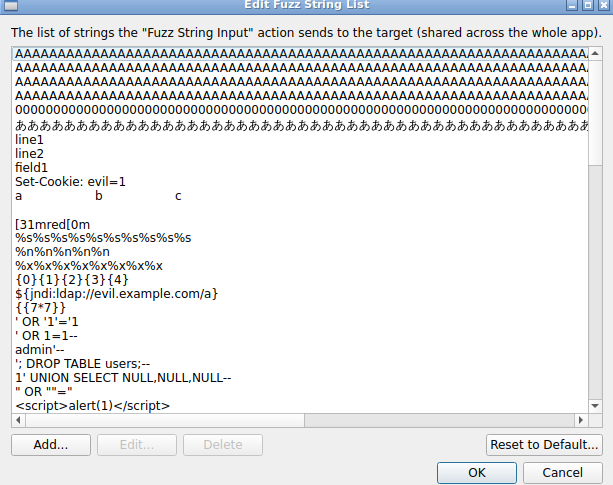
"Fuzz All Input Fields in Region" depends on the target app's accessibility API (see "④ ① Selecting the target app"). Depending on the target app and its GUI toolkit, some kinds of input fields — a spin box's embedded entry, for instance — may not correctly expose themselves as "editable" in the accessibility tree, and so get missed by detection. This is a known limitation stemming from the target app's own accessibility support, not a bug in this tool.
Hold-and-Drag (camera-style operation) & options for 3D viewers
The "Hold-and-Drag (camera-style operation)" action type models the "press and keep moving" camera gestures (rotate, pan, spin, zoom) used by 3D viewers such as those built on VTK. Whereas an ordinary "Drag" is a single, instantaneous press → move → release, this one keeps a chosen button (left / middle / right) and modifier-key combination (Shift/Ctrl/Alt) held down while moving continuously along a circular, zig-zag, or random-walk path for a specified duration. You can register multiple button+modifier combinations in the detailed action settings, and one is picked at random (weighted) each time the action runs — e.g. registering VTK's own standard bindings (plain left = rotate, Shift+left or middle = pan, Ctrl+left = spin, right = zoom) all at once lets every run exercise a varied mix of camera operations.
While a Hold-and-Drag is in progress, the following can additionally be layered on top of it (each independently optional):
- Wheel: sends a burst of a set number of notches, then pauses, repeating. The notch count, notch interval, and pause duration are each given as a range — push the interval toward 0 for rapid-fire input, or lengthen the pause for a "rapid-fire alternating with complete stops" pattern.
- Key input: sends one character at a fixed interval (the candidate characters/named keys share the same settings as the ordinary "Key Input" action).
- Window operation: resizes the target window, or minimizes then restores it, at a fixed interval.
For apps like 3D viewers where a right-button drag is assigned to zoom (or similar) and there is no real context menu, check "Right button never opens a menu (for 3D viewers)". Without this, every click/drag/hold-and-drag that uses the right button ends up sending an Escape key after searching for a menu that was never actually going to appear, which can unintentionally cancel whatever the target app was doing. Leave this unchecked for ordinary apps that have a real right-click menu.
7Timing / limits & automatic anomaly recording
The "Timing / Limits" area of panel ① sets the interval between actions (ms, or actions/sec), the max action count, max run time, and repeat count for the whole step sequence (all three are required — unlimited isn't an option), the RNG seed, and more. Scrolling down reveals the following additional settings.
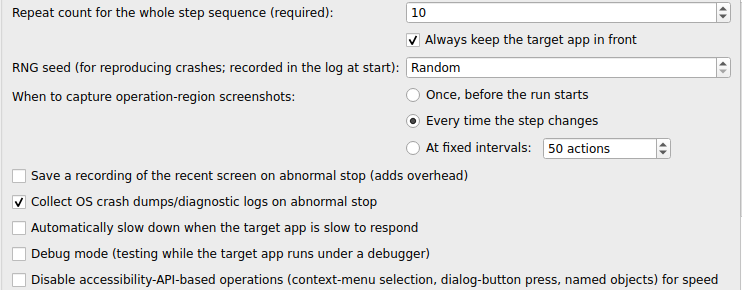
| Setting | Description |
|---|---|
| Keep the target app always on top | On by default. Raises the target window to the front at the start of the run and right before each action, so clicks/key input reliably reach it. This can leave the main EnduranceTestGUI window hidden behind the target window, but you can still pause, resume, and stop from the always-on-top floating panel in the upper right (see "⑧ Starting and stopping a run") even then |
| RNG seed | Left as "Random", a new one is generated each run. Specifying a value lets the same action sequence be reproduced later (useful for reproducing a crash) |
| When to capture operation-region screenshots | Choose from: once before the run starts / every time the step changes / at fixed intervals. Captured images can be saved afterward via "Save Operation-Region Image..." |
| Save a recording of the recent screen on abnormal stop | Off by default. When enabled, keeps a rolling buffer of the screen at 0.5-second intervals (roughly the last 10 seconds) and automatically saves it as numbered PNGs on a crash |
| Collect OS crash dumps/diagnostic logs on abnormal stop | On by default. Makes a best-effort search for the target app's crash report/core dump and records the path in the log if found |
| Automatically slow down when the target app is slow to respond | Off by default (Linux only). If the same responsiveness check used for hang detection (polled every 8s) fails just once, the action interval is temporarily lengthened 5x (until it either recovers or is confirmed as a hang) to reduce load on the target app, and reverts automatically once it responds again. The hang-stop condition itself (two consecutive failures) is unchanged by this option |
| Debug mode (testing while the target app runs under a debugger) | Off by default (Linux only). Enable this when running the target app attached to a debugger (gdb/lldb, etc). It raises the number of consecutive response failures required to confirm a hang from 2 to 15 (roughly 2 minutes), so a breakpoint pause isn't easily mistaken for a genuine hang (a real hang is still eventually detected as before). See below for details |
| Disable accessibility-API-based actions (context menu selection, dialog button press, named objects) for speed | Off by default. When enabled, no accessibility API calls are made at all (not even initialization) -- not just for steps that reference a named object (see "④ ① Selecting the target app") but for context menu selection and dialog button press too. Use this when the target app doesn't support the accessibility API, or you simply want purely coordinate-based, high-speed endurance testing |
/proc/<pid>/status's TracerPid; on macOS via PROC_FLAG_TRACED). If you click "▶ Start" with a debugger attached but forgot to turn on "Debug mode", a "Debugger attachment detected" confirmation dialog appears before the run starts (continuous-run and CLI/headless runs have no one to confirm with, so they just log a warning and continue). If you proceed anyway, the same warning is also logged once during the run.
Load injection mode (separate process, diagnostic)
CPU load from other software running on the same machine can shift the timing between a target app's own threads, and that shifted timing is sometimes exactly what triggers a load-dependent ("Heisenbug") crash. The "Load Injection (Separate Process, Diagnostic)" group lets you deliberately reproduce that situation. Check "Enable load injection during the test run", set the process count and memory per process, and that many dedicated CPU+memory load processes (loadstress_helper) are launched. These run as independent OS processes, not as threads inside EnduranceTestGUI itself, so generating load never slows down EnduranceTestGUI's own action-dispatch speed (on Linux, the load processes are also automatically kept off whichever CPU core EnduranceTestGUI itself uses). With "Link to the test run's start/stop" checked (the default), load injection starts automatically the moment "▶ Start" begins the test and stops automatically whenever the run ends, whether it finishes normally, crashes, or is stopped by hand. Uncheck it to control load injection manually at any time with the "Start/Stop Load Injection Now" button, independent of whether a test is currently running (this button stays usable even while a run is in progress).
Load Monitor (CPU/Memory Visualization)
Choose "View" → "Load Monitor..." from the menu bar to open this as its own separate window, apart from the main window. It plots the target app's own CPU usage and memory, plus whole-system CPU usage (Linux only), live as line charts. CPU usage and memory usage live on very different scales, so rather than overlay them on one chart, they're shown as two separate stacked charts: "CPU Usage" on top (a shared 0-100% axis) and "Memory Usage" below it (its own axis, auto-scaled from 0MB). Check "Enable load monitor" and it plots the currently selected target app's load (①) every "Sampling interval" (default 500ms, adjustable to your preference). You don't need to have started a test -- as long as a target is selected in ①, checking the box starts monitoring immediately (if no target is selected, a log message says so). Checking it while a test is running starts it just the same, and if it's still checked when that run ends, monitoring keeps going (uncheck it if you want it to stop). A stretch of the chart shaded light red marks a period when load injection mode was active. "Save Load Monitor Graph..." lets you manually export the current history as a CSV file and a graph image at any time. You can leave this window open alongside the main window while a test runs, so you can watch the load trend while still working in the main window (steps, etc.). Enabling, sampling, and the automatic save on a crash all keep working exactly the same even if you never open this window at all.
This feature's main purpose is letting you check afterward how much load there was right before a crash. On an abnormal stop (crash), the CPU/memory history leading up to it is automatically saved as a CSV file and a graph image (to the same location as the auto-saved operation-region image and test preset). A shorter sampling interval records at finer time resolution, but getting too close to ①'s own operation interval (its minimum ms setting) can let the sampling itself get in the way of high-speed operation, so set a value comfortably larger than the operation interval. Leaving it unchecked (the default) means the sampling timer itself never runs, so this has zero effect on the endurance test itself.
Automatic memory leak detection (optional)
Check "Automatically detect a suspected memory leak" and the existing 5-second resource monitor (which always runs) has its recorded memory-usage trend watched: if the growth rate (MB/minute) stays at or above your chosen threshold for a while (a few minutes), a "suspected memory leak" warning is logged once and recorded in the run summary. A bug that leaks memory slowly without ever actually crashing used to be invisible unless you watched the chart yourself; with this on, you can spot it just from the log/summary. It never treats this as a crash or auto-stops the test -- detection/reporting only. Leaving it unchecked (the default) means this feature does nothing and existing behavior is unaffected.
Target app log file monitoring and auto-attach on crash (optional)
Point the ① target panel's "Target app's log file (optional, its tail is auto-saved on a crash)" field at a log file the target app itself writes, and whenever an abnormal stop (crash, etc.) is detected, its tail (up to 512KB / 200 lines) is automatically saved alongside the screenshot and crash dump. If your target app logs its own diagnostics, this gives you far richer crash context than a screenshot alone. Left blank (the default), this feature does nothing and existing behavior is unaffected.
8Starting and stopping a run
Once configured, click "▶ Start" to begin the run. While it's running, an always-on-top floating panel appears in the upper right (showing the action count, a "‖ Pause" button, and a "■ Stop (STOP)" button), so even while "Keep the target app always on top" (⑦ Timing/Limits, on by default) leaves the target app's window covering the main EnduranceTestGUI window, you can still pause, resume, or stop the run immediately from this floating panel.
Setting "Repeat count" to 2 or more and clicking "▶ Start" automatically begins the next run (waiting for the target app to relaunch) each time one finishes, repeating that many times. If the target app is still alive when a run ends it's reused as-is; if it has gone, the next run starts once the auto-launch command (①) restarts it, or once a manual relaunch is detected. Separately, the "⟳ Continuous run" button always terminates the target app first — whether or not it's currently running — before launching a fresh instance and running the startup setup and step sequence, repeating that kill-then-relaunch cycle for "Repeat count" cycles. Use it when you want every run to start from a genuinely clean instance (the auto-launch command in ① is required for this button). Either mode can be interrupted at any time with "■ Stop".
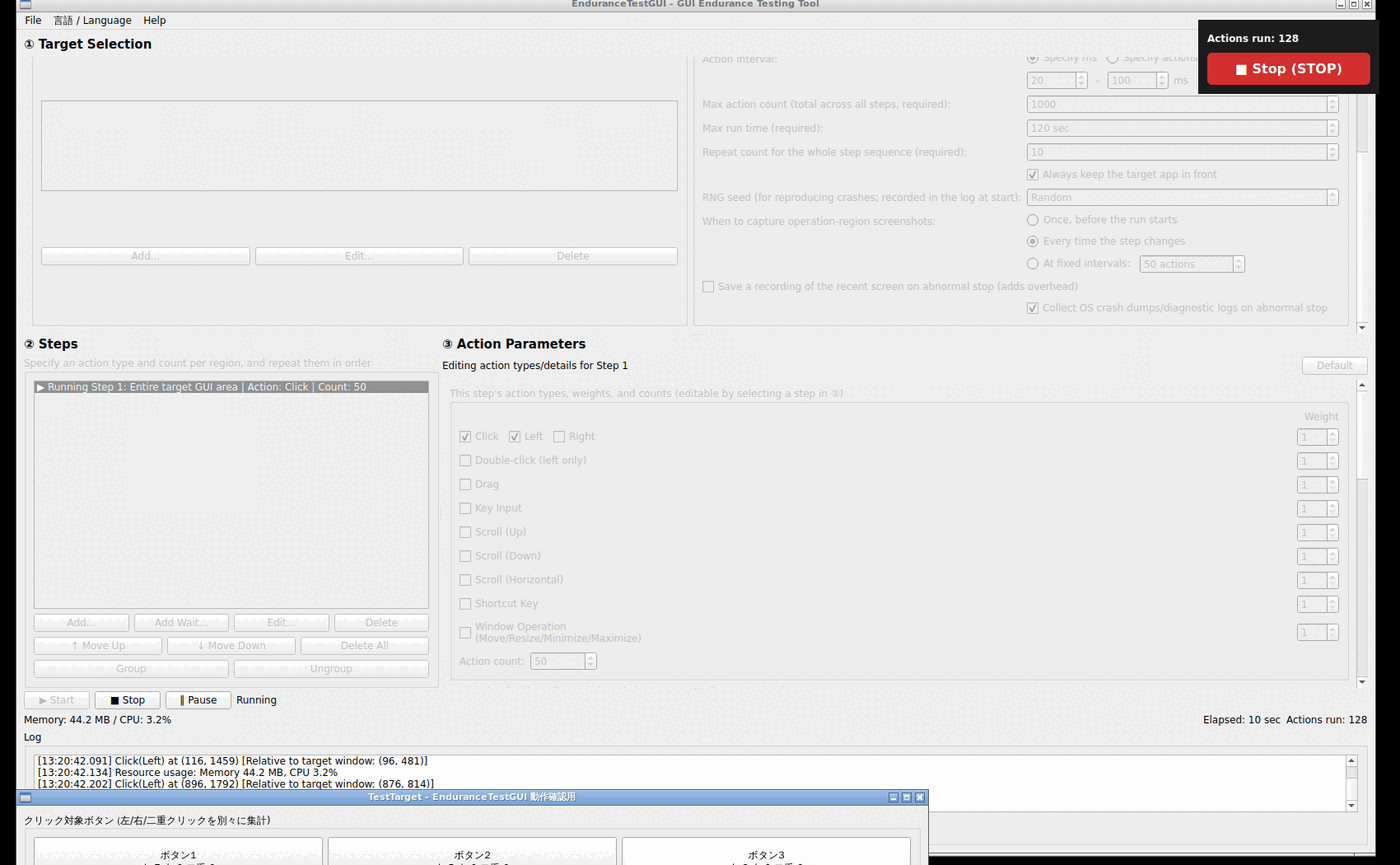
For each action, the log records its coordinates, the coordinates relative to the target window, and (when available) the name of the UI widget that was clicked. The full log is also written incrementally to a file under ~/Documents/EnduranceTestGUI_Logs/, so even after older lines scroll out of the on-screen display (capped at the most recent 5000 lines), the complete history remains available afterward.
A run stops automatically when any of the following happens:
- The max action count, max run time, or sequence repeat count limit is reached
- The user presses "■ Stop"
- A crash or the disappearance of the target app's window is detected (see next section)
- An action was about to land on something other than the target app (a fail-closed safety stop)
- The target app stops responding (hang detection, Linux only)
Running from a terminal without opening the GUI (CLI/headless mode): Given a preset JSON saved with "Save test settings...", running EnduranceTestGUI --run <preset.json> [--repeat N] in a terminal runs the same test with no window shown at all. It behaves exactly like the "⟳ Continuous run" button: it terminates the target app, launches it fresh with the launch command (which must be saved in the preset), and repeats that cycle --repeat times (default 1). All progress, action logs, and the run summary are printed to stdout, and the process exits automatically once every repeat has finished (or once an error makes continuing impossible). The exit code is 1 if any run was anomalous (e.g. a crash) and 0 otherwise, so a shell script or CI pipeline can check success directly.
9Continuous recording & animation export
The "● Record" button in the run-control row is independent of "▶ Start" / "■ Stop". Regardless of whether a test is currently running, pressing it immediately starts capturing the target window as a sequence of numbered PNG frames at a 0.5 second interval, and keeps capturing until you press it again ("■ Stop recording"). You can use it to record manual operation of the target app, to record while an endurance run is in progress, or to record straight across both.
Starting a recording briefly raises the target window to the front once. If the target window moves or is resized while recording, the capture keeps following it. Recording files are saved by default as a numbered sequence like frame_00001.png under ~/Pictures/EnduranceTestGUI_Screenshots/recording_<timestamp>/. If the target app exits or crashes mid-recording and its window can no longer be found, the recording stops safely on its own (this never crashes EnduranceTestGUI itself).
~/Pictures/EnduranceTestGUI_Screenshots/ (files already recorded/saved before the change are not moved). If recordings or crash artifacts fail to save because the destination disk is full, use this to switch to a location with room to write.
Stopping a recording brings up a "Convert this recording to an animation?" confirmation. Choosing "Yes" opens the export dialog directly, and you can also open it at any later time for any past recording folder (including ones from earlier sessions) via the "Convert Recording to Animation..." button in the log area.
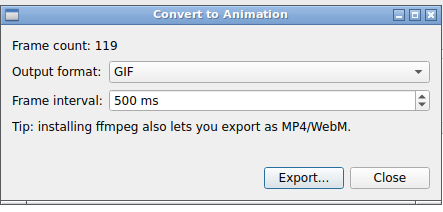
In the export dialog, choose the output format and frame interval (default 500 ms), then click "Export...": a save-location dialog appears, followed by conversion with a progress bar (cancel at any time with "Cancel"). GIF is always available as an output format, using a self-contained encoder with no external tool required. MP4/WebM are only enabled when ffmpeg is installed on the machine running the app (otherwise those options are greyed out, with a hint explaining why). If the target window was resized mid-recording and frames therefore differ in size, they are automatically padded to the largest frame's size before conversion, so no content is cropped out.
Clicks and drag-and-drops performed during an endurance run are automatically marked on the recorded frames. A click/double-click draws as a fading, expanding red ring (blue for a right click); a drag draws as an orange arrow from its start point to its end point — each marker stays visible for a short time around the moment the action actually happened. This makes it possible to see where a run's fast, randomized operations actually landed just by watching the exported animation afterward.
10Crash detection & re-testing
When the target app's process is detected as gone, the run stops immediately and a dialog like the following appears.
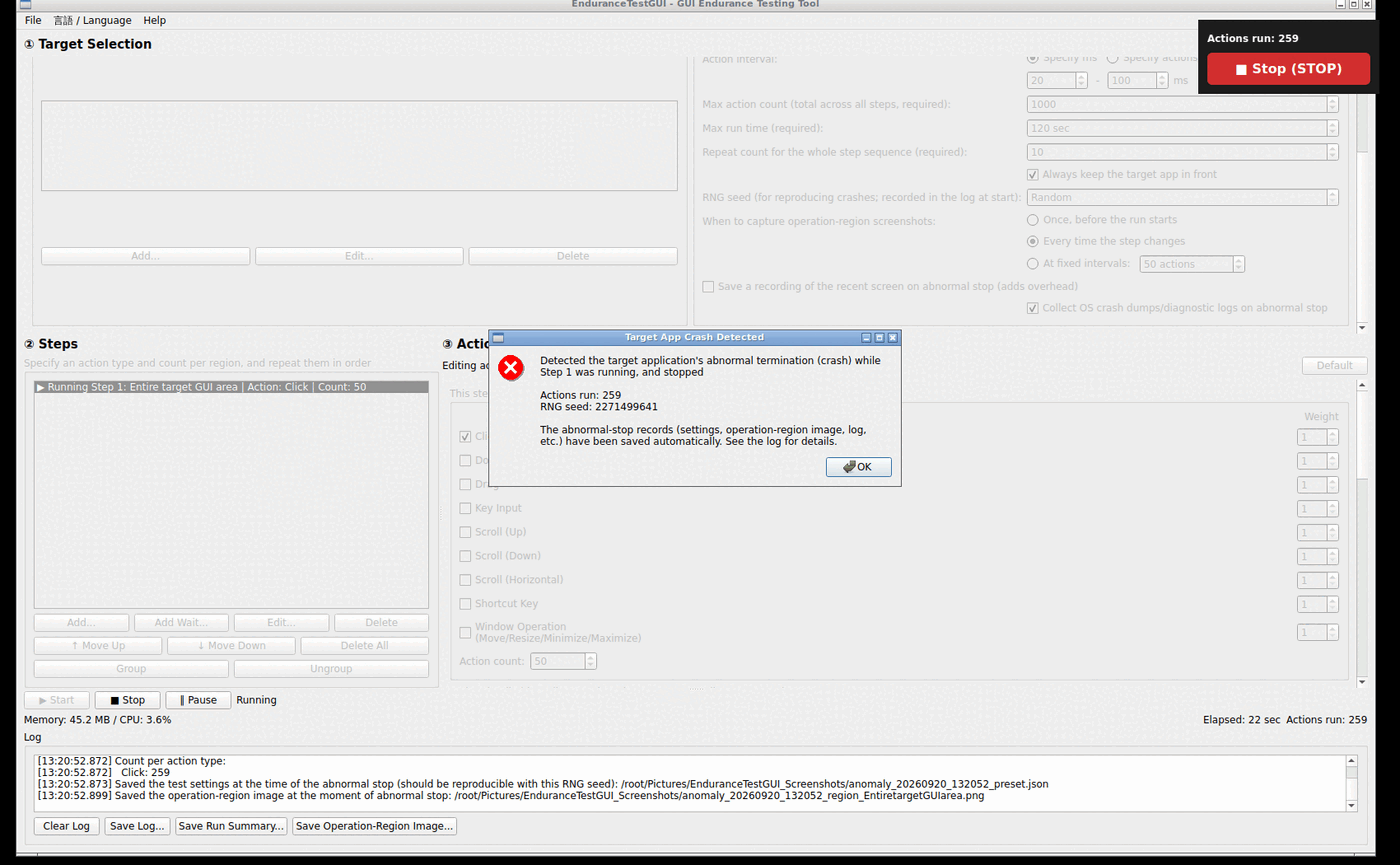
Both the dialog and the log show which step was running when the crash was detected, how many actions had run so far, and the RNG seed. At the same time, a JSON snapshot of the test settings (with that seed), a screenshot of the operation region, a recording of the recent screen (if enabled), and the location of the OS's crash dump (if found) are all saved automatically under ~/Pictures/EnduranceTestGUI_Screenshots/ by default (or wherever you've redirected it to via the "File" menu — see section 9).
11Saving & loading test settings
"Save Test Settings..." in the "File" menu saves the operation regions, step configuration, and timing settings assembled in ①② together into a JSON file. "Load Test Settings..." loads it back and, if the app it was targeting when saved is currently running, automatically selects it again (otherwise a message prompts you to pick it manually). This lets the same configuration be reused across sessions or across different builds, without rebuilding it from scratch each time.
12Switching the display language
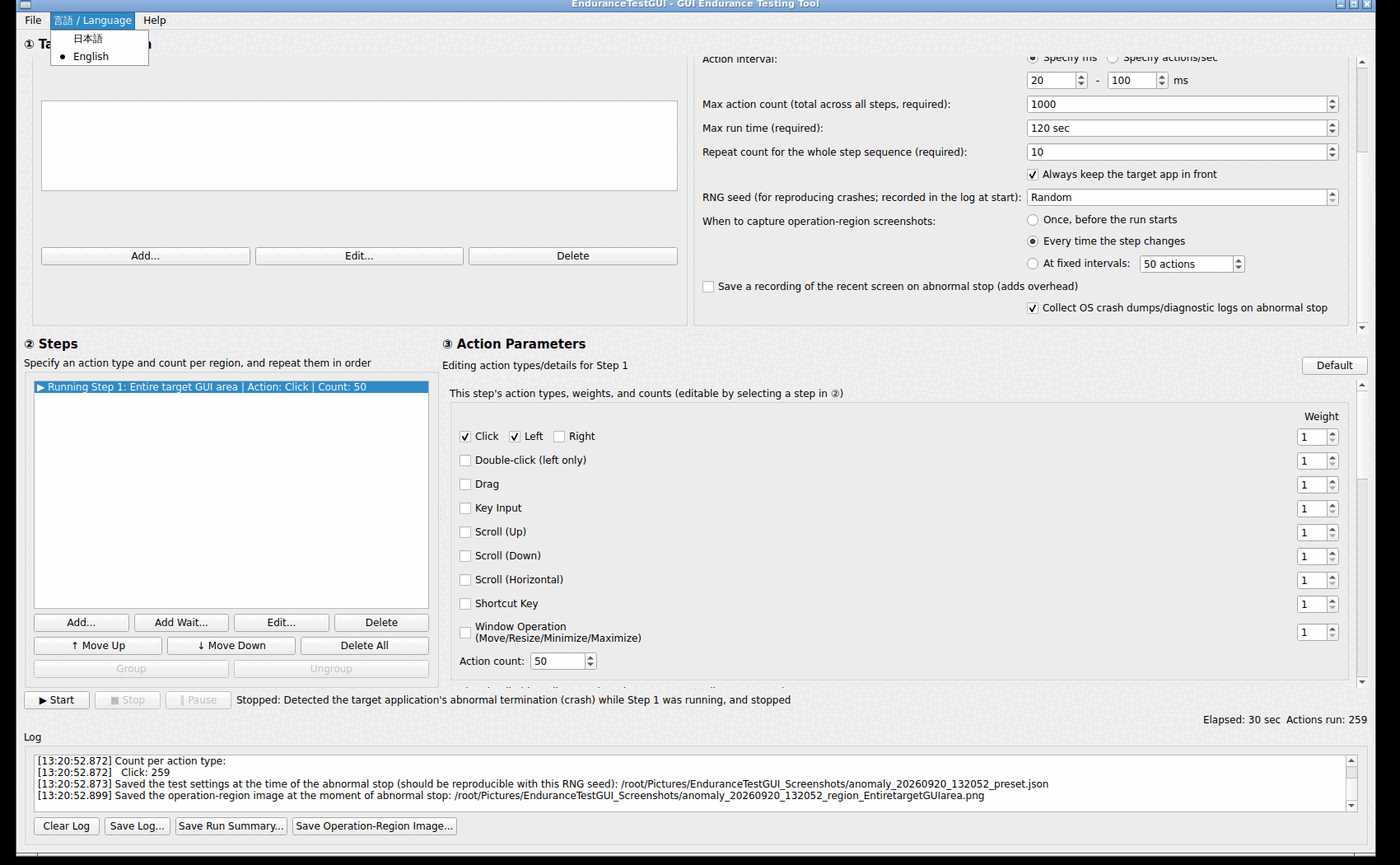
Choose "日本語" or "English" from the "言語 / Language" menu in the menu bar. Your choice is saved and takes effect from the next launch onward (the currently running window doesn't switch live).
13Troubleshooting
Clicking "Start" fails with a safety-check error
Check that the target window isn't covered by another window and isn't minimized. If that doesn't help, some environments (particularly certain tiling window managers on Linux) don't support the mechanism used to confirm the target app can be operated safely at all.
The target app doesn't appear in the window list
Click the "Update" button in ① to re-scan. Only normal top-level windows are listed.
Right-click menu item selection isn't working well / "Press dialog button" can't find the button
These are experimental features that rely on macOS/Linux accessibility support. On Linux, the target app's toolkit needs to have its AT-SPI bridge enabled (GTK/Qt apps usually have this on by default). They also won't work if the Linux desktop environment itself doesn't provide an AT-SPI D-Bus session bus (some minimal setups don't).
14Licensing
EnduranceTestGUI's own source code is hosted on GitHub and released under the MIT License (see LICENSE at the repository root). The app uses Qt (the Widgets module); the free-software edition of Qt is distributed under the GNU LGPL version 3 (some modules under the GPL). You can always check exactly which license the Qt build in use is distributed under from "Help" → "About Qt..." inside the app itself. For details on the other dynamically linked libraries, see THIRD_PARTY_NOTICES.md at the repository root.
15Building from source (for developers)
This section is for developers who want to build from source themselves. Regular users can skip it.
Common requirements
- CMake 3.20 or newer
- A C++17-capable compiler (GCC or Clang on Linux, Xcode Command Line Tools on macOS, MSVC on Windows)
- Qt 6 (recommended) or Qt 5. Only the Widgets module is used. CMake looks for
Qt6first and falls back toQt5if it isn't found.
Additional requirements on Linux
The following are low-level X11 libraries EnduranceTestGUI itself uses to operate the target app. If their development headers (the -dev/-devel packages) aren't found, CMake configuration itself fails.
- X11, XTest (synthesizing mouse/keyboard input)
- Xi (XInput2, input-device related)
- Xext (the Shape extension, used to determine window shape)
- gobject-2.0
On Debian/Ubuntu, something like the following covers it (package names may differ slightly on other distributions):
sudo apt install build-essential cmake qt6-base-dev libx11-dev libxtst-dev libxi-dev libxext-dev libglib2.0-dev
In addition, the experimental features for automatically selecting a context-menu item and pressing a dialog button use the AT-SPI (atspi-2) library. This isn't required — if it's missing, the build simply logs a warning and continues with that feature disabled. To enable it, install libatspi2.0-dev on Debian/Ubuntu, or at-spi2-core-devel on Fedora.
Additional requirements on macOS
The ApplicationServices, Cocoa, and Carbon frameworks are used, but all are provided by the OS itself, so nothing extra needs to be installed. For Qt, a Homebrew install (Intel/x86_64 only) can be used, but on Apple Silicon the Qt Online Installer build (installed under ~/Qt) is recommended instead, since it's a universal binary covering both x86_64 and arm64, which makes Accessibility permission recognition more reliable. The built app bundle is automatically ad-hoc code-signed after building, which stabilizes Accessibility permission handling and requires neither an Apple Developer Program membership nor a distribution certificate.
Build commands
From the repository root:
cmake -B build -DCMAKE_BUILD_TYPE=Releasecmake --build build -j
The same invocation also automatically builds the verification target app TestTarget (under testtarget/, pulled in via add_subdirectory) and the load-generation helper process loadstress_helper — no separate build step is needed for either. Once the build succeeds, each executable is produced under the build directory (inside the .app bundle under build, on macOS).